Configure Secure Access Groups
This guide explains how to create and configure Secure Access Groups (SAGs) in the Anapaya CONSOLE. A SAG allows you to create private, invisible network overlays where path segments are only visible to group members.
Prerequisites
Before configuring a Secure Access Group:
- Your organization must have a valid SAG contract with an active start date (i.e., not in the future).
- Each participating appliance must have an Anapaya EDGE Pro license.
- You must have the Operator role (or higher) in your Anapaya CONSOLE organization.
Topology types
A Secure Access Group's topology defines how member ASes communicate with each other. The topology is set at creation time and cannot be changed afterward. The two possible topology types are:
Mesh topology
In a mesh topology, every member AS can discover and communicate with every other member AS. All
members have the same role (Mesh) and share path segments equally.
Use mesh topology when:
- All members need full mutual connectivity.
- You are connecting your own offices, cloud environments, and data centers.
- You want a flat, non-hierarchical private network.
Hub-spoke topology
In a hub-spoke topology, one or more ASes are designated as Hubs and the remaining ASes are Spokes. Spoke ASes can only discover and communicate with Hub ASes; they cannot reach other Spokes directly. This creates a centralized connectivity model.
Use hub-spoke topology when:
- You want to centralize traffic through a set of hub sites (e.g., headquarters or data center).
- You are connecting external partners who should communicate only with your hub, not with each other.
- You need to enforce a star-shaped access pattern.
Create a Secure Access Group
Navigate to SCION > Secure Access Groups in the left sidebar.
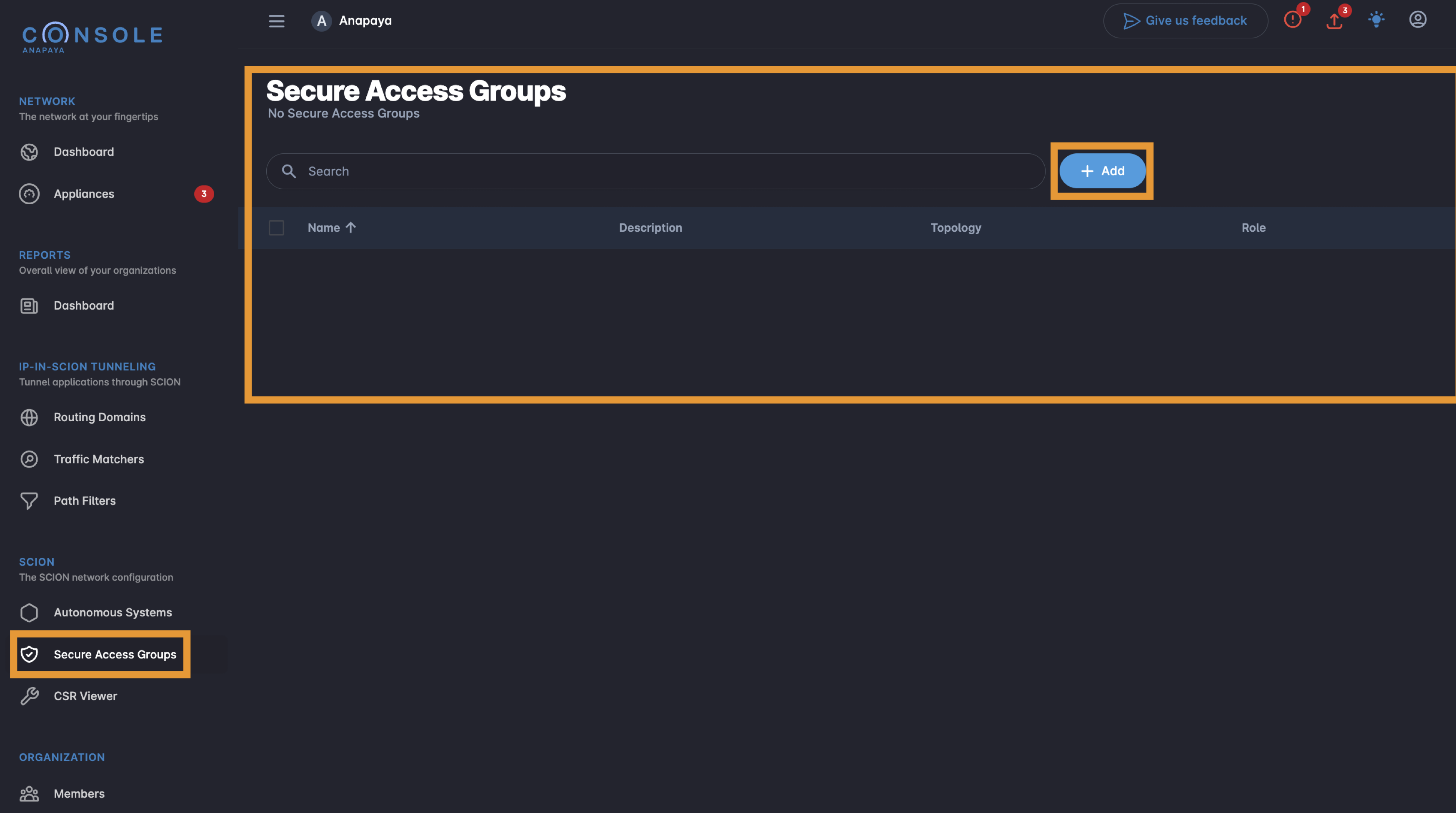
The list shows all Secure Access Groups in your Anapaya CONSOLE organization. Click the + Add button to create a new group.
Configure general settings
On the creation page, fill in the following fields:
- Name: A unique name for the SAG.
- Description: A brief optional description of the SAG's purpose. This can be updated later.
- Topology: Select either Mesh or Hub-Spoke.
Fields Name and Topology are immutable. They cannot be changed after the SAG is created (i.e., after you click Save).
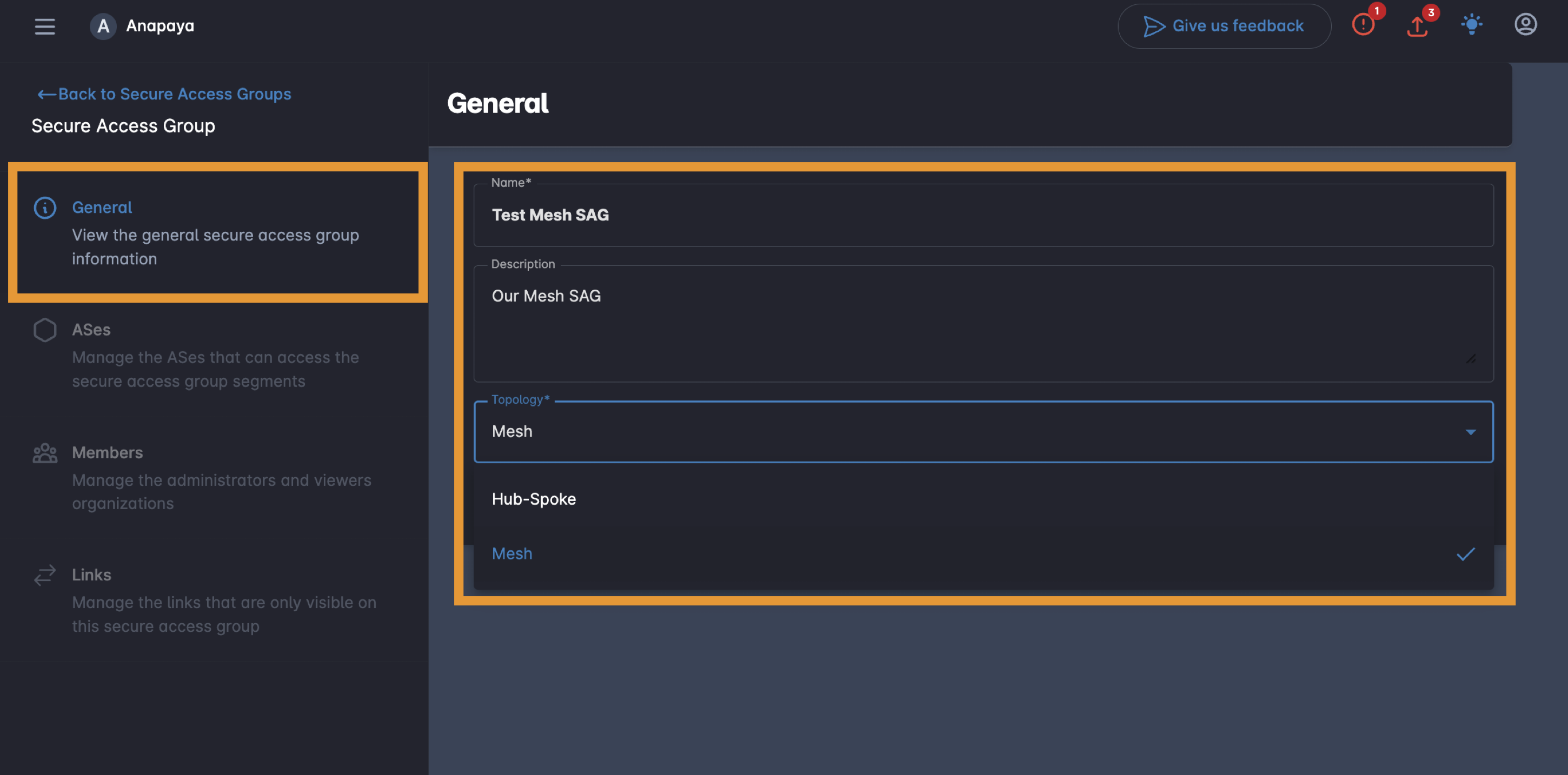
After filling in the fields, click Save to create the SAG.
Configure AS members
Navigate to the ASes tab in the left sidebar of your SAG. This page manages which Autonomous Systems can access the SAG's private path segments.
Invite an AS
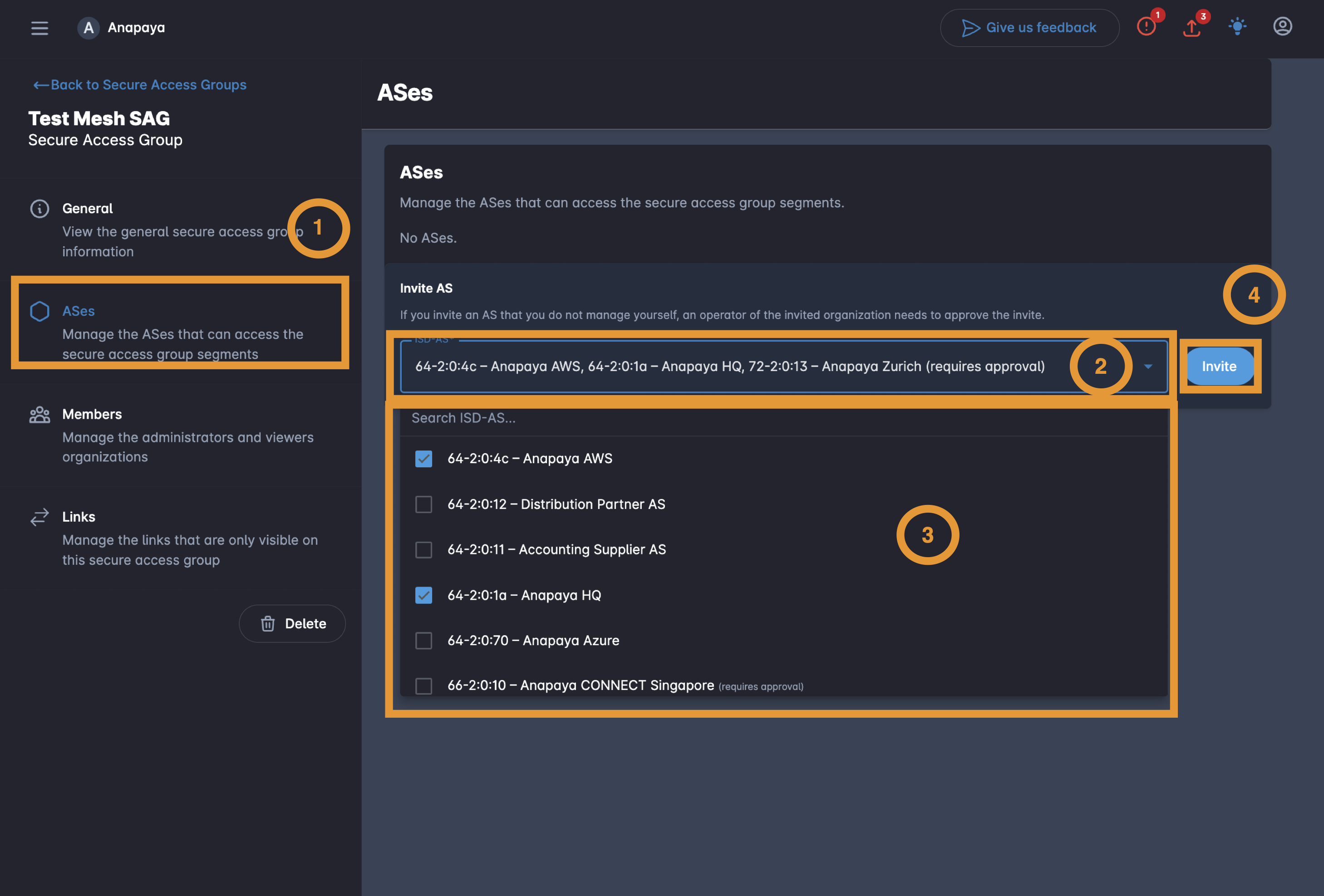
To add an AS to the SAG, use the Invite AS section:
- Click on ASes on the left sidebar.
- Click the ISD-AS dropdown to open the list of possible ASes.
- Select one or more ASes to invite. ASes from organizations you manage will be directly added without invitation. ASes from other organizations appear with a (requires approval) label — an Operator of that organization must accept the invitation before the AS becomes a member.
- After selecting the desired ASes, click the Invite button.
If you invite an AS from an organization not managed by your organization, the invitation remains in Pending status until an operator of that organization accepts or declines it.
The table updates to show the current members and pending invitations:
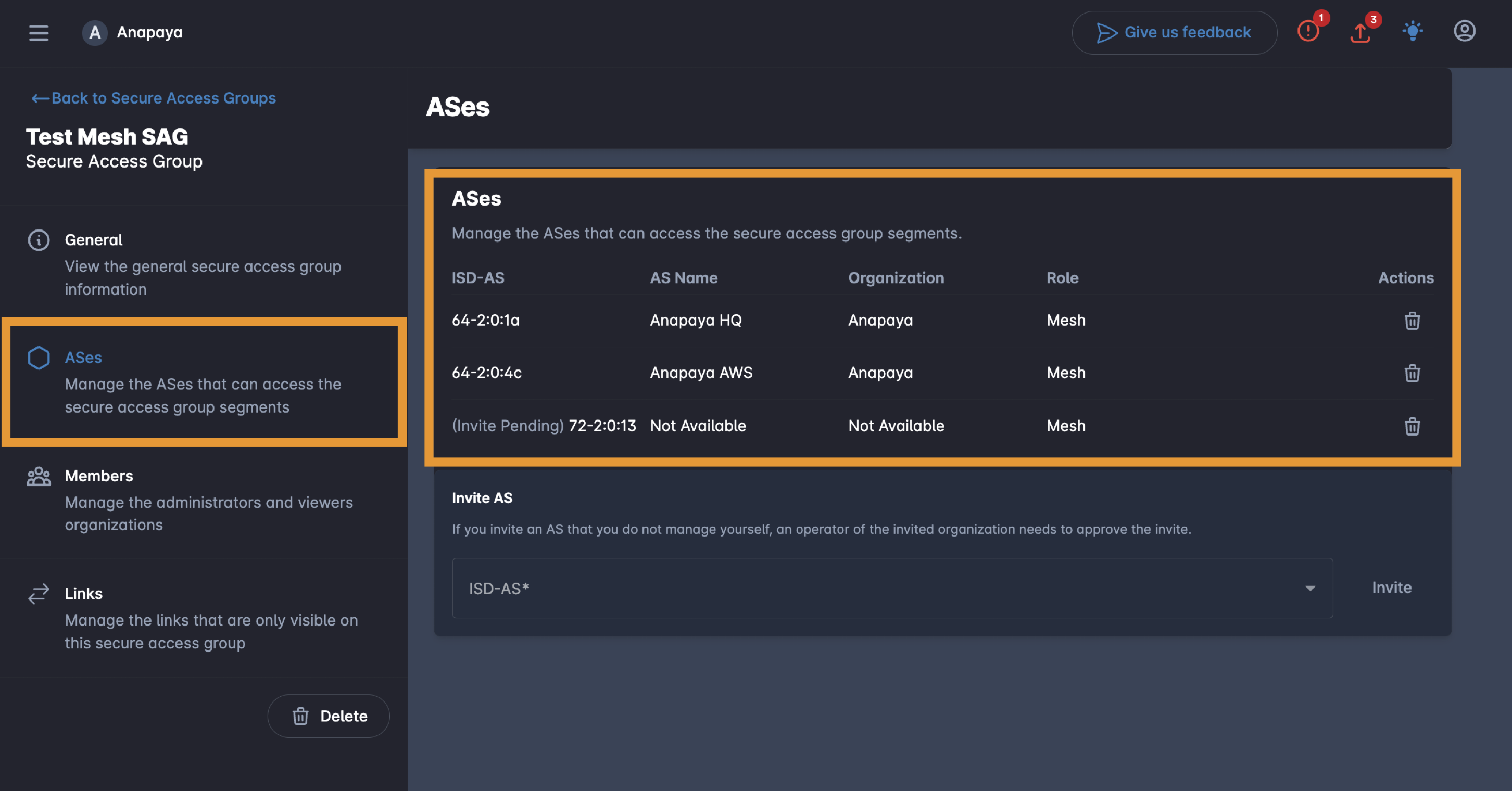
The table columns show:
- ISD-AS: The SCION ISD-AS identifier. Pending invitations display an (Invite Pending) prefix.
- AS Name: The human-readable name of the AS. Shows Not Available for pending cross-org invitations.
- Organization: The organization that owns the AS.
- Role: The AS role within the SAG: Mesh, Hub, or Spoke (depending on topology).
- Actions: Remove the AS or cancel a pending invitation.
Remove an AS or cancel an invitation
To remove an AS member or cancel a pending invitation, click the delete icon in the Actions column.
- For pending invitations, hovering the icon shows Remove AS invitation:
- For active members, hovering the icon shows Remove AS:
Configure links
- Link is a SCION link connecting a SCION AS in the SAG to its SCION provider.
- Each SCION link corresponds to a pair of SCION interfaces, one on the provider side, and one on the customer side. In this documentation, a SCION link is identified by the SCION interface number on its customer-AS side.
- Path segment is a segment of a network path in the SCION Internet that ends with a specific SCION interface of a leaf (customer) AS that is a member of a SAG. Such a segment provides SCION connectivity from other SCION ASes to that specific interface. By adding a link associated with that interface to the SAG, all SCION path segments reaching that interface will be hidden from the SCION public Internet and only the SAG members would have access to such segments.
A SAG is only meaningful with SCION links published to it. To do so, navigate to the Links tab in the left sidebar of your SAG. Links define which SCION links are published to the SAG.
To publish the links of a SAG member AS, your organization must either own that AS or manage the organization that owns the AS.
The mere owner or admin role on the SAG does not automatically allow publishing links of all AS members to the SAG.
Add links
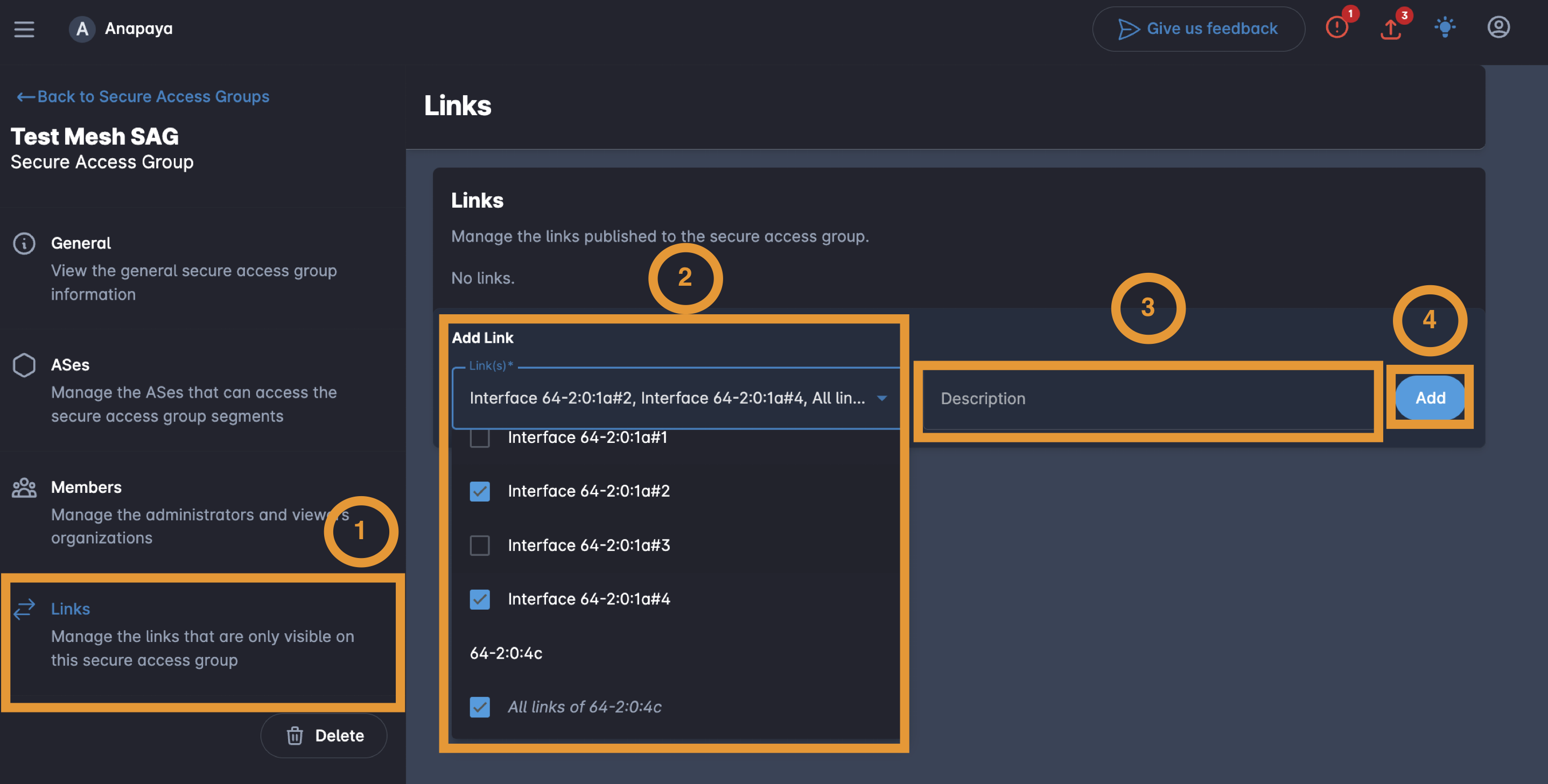
Use the Add Link section to publish links to the SAG:
-
Click on the links on the left sidebar.
-
Click the Link(s) dropdown. The list displays links of those member ASes of the SAG that are managed by your organization, grouped by AS. You can select individual links (e.g.,
64-2:0:1a#2) or use the All links of [AS] option to publish all links from an AS.dangerAdding a link to a SAG, makes it inaccessible on the public SCION network. To make a link accessible on the public SCION network again, it must be removed from all the SAGs it has been published to.
However, this happens only when you deploy the modified configuration of the appliances pertaining to the SAG links (see Activating SAGs).
-
Optionally, enter a Description to label this set of links (e.g., "Group 1").
-
Click Add to publish the selected links to the SAG.
The table updates to show all published links:
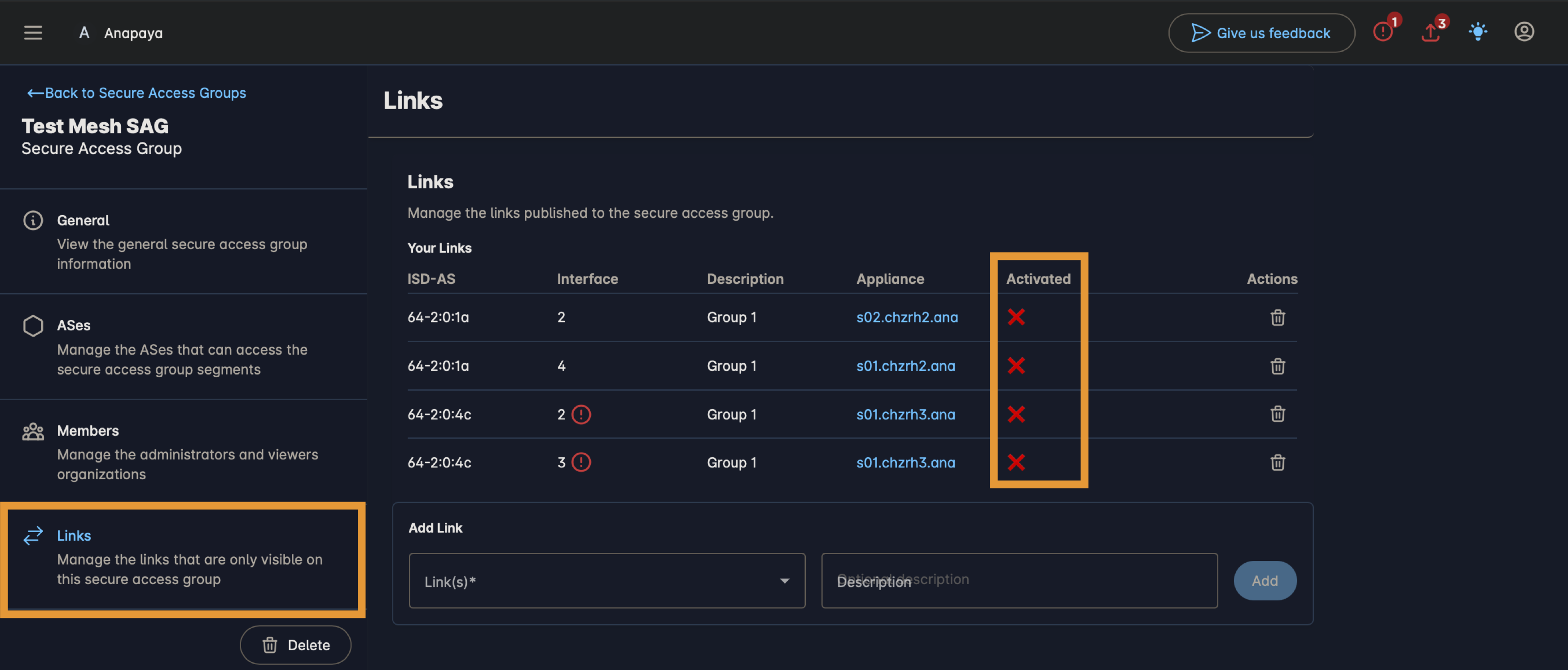
- ISD-AS: The AS that is connected to a provider via the SCION link.
- Interface: The local SCION interface on the side of the link that is being published.
- Description: The label assigned when adding the link.
- Appliance: The name of the appliance where the link is located. Clicking on the name would redirect you to the appliance overview page.
- Activated: Whether the link is activated or not (see Activating SAGs).
- Actions: Remove the link from the SAG.
Remove a link
Click the delete icon in the Actions column to remove a link from the SAG.
To make a SAG link accessible in the public SCION Internet, you must (1) remove it from all SAGs to which it has been published, and (2) deploy the modified configuration of the corresponding appliance. Otherwise, the link will remain inaccessible from the public SCION Internet (see Activating SAGs).
Activating SAGs
Now that you have completed all the necessary steps to just specify a SAG in CONSOLE, you need to activate the SAG to actually hide SAG links from the public SCION Internet and expose them to the AS members of the SAG(s). Without the activation step, the links you (or other AS members) publish to the SAG will either remain public (if the link has not been published to another SAG), or will not be visible in the newly added SAG (if the link is already part of another SAG). To activate the SAG, you need to deploy the modified configurations of the appliances affected by the link publication.
Prerequisite
The requirement for activating a link on an appliance is that the appliance's software supports secure access group configuration, which is only supported since v0.41. We show a violation for SAG links whose appliances do not meet this requirement. This is both shown in the violations on the top-left corner of the page and on each violating SAG link.
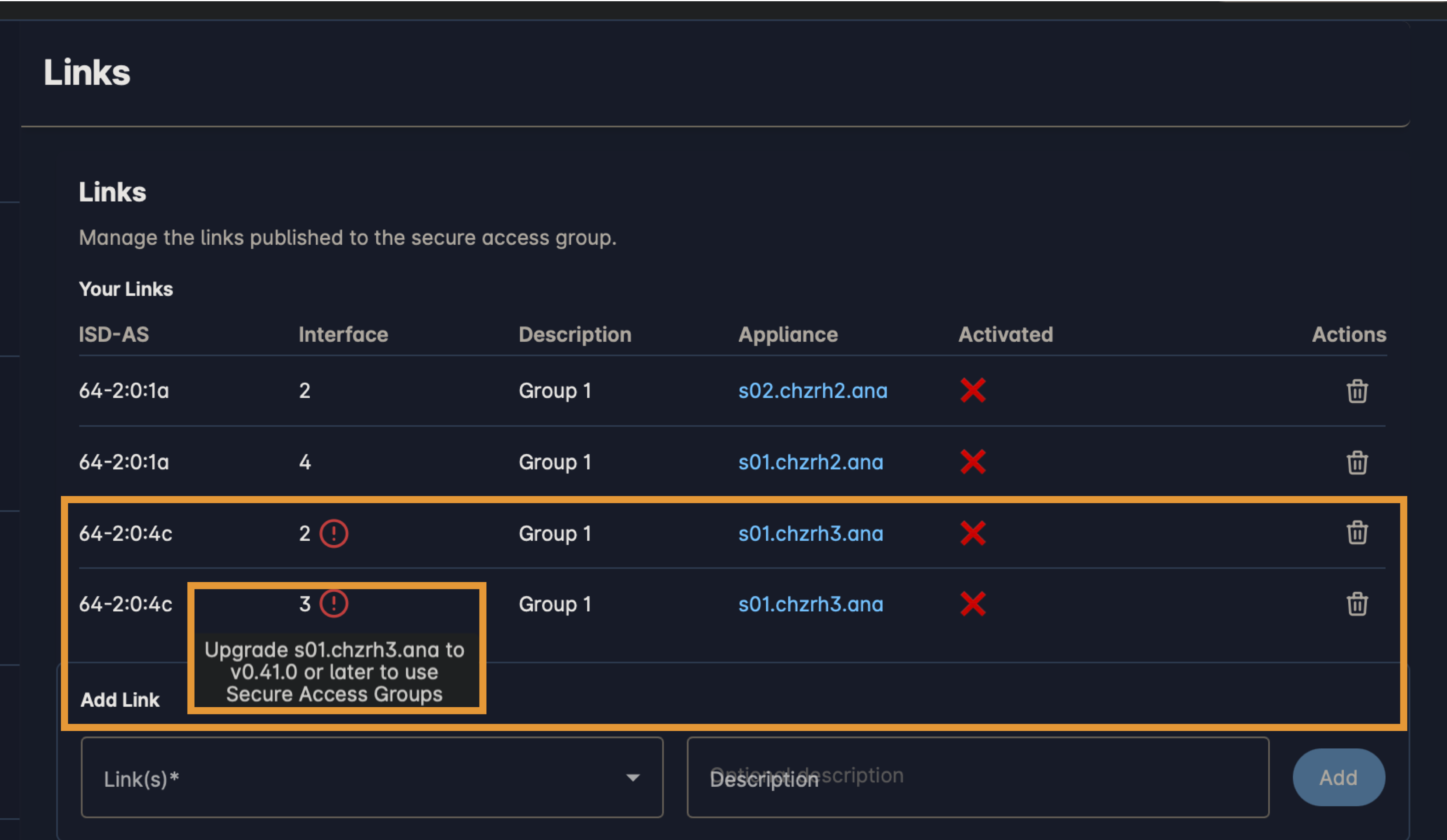
To update the software version on the appliance, click on the appliance name and follow the steps in Update appliance software.
Steps to activate SAG links
Follow the following steps for every not-yet-activated SAG link (i.e., links with ❌ in the Activated column in SAG Links table).
The activation step must be executed by all member ASes. Otherwise, non-activated ASes cannot access the SAG and their links are not visible in the SAG.
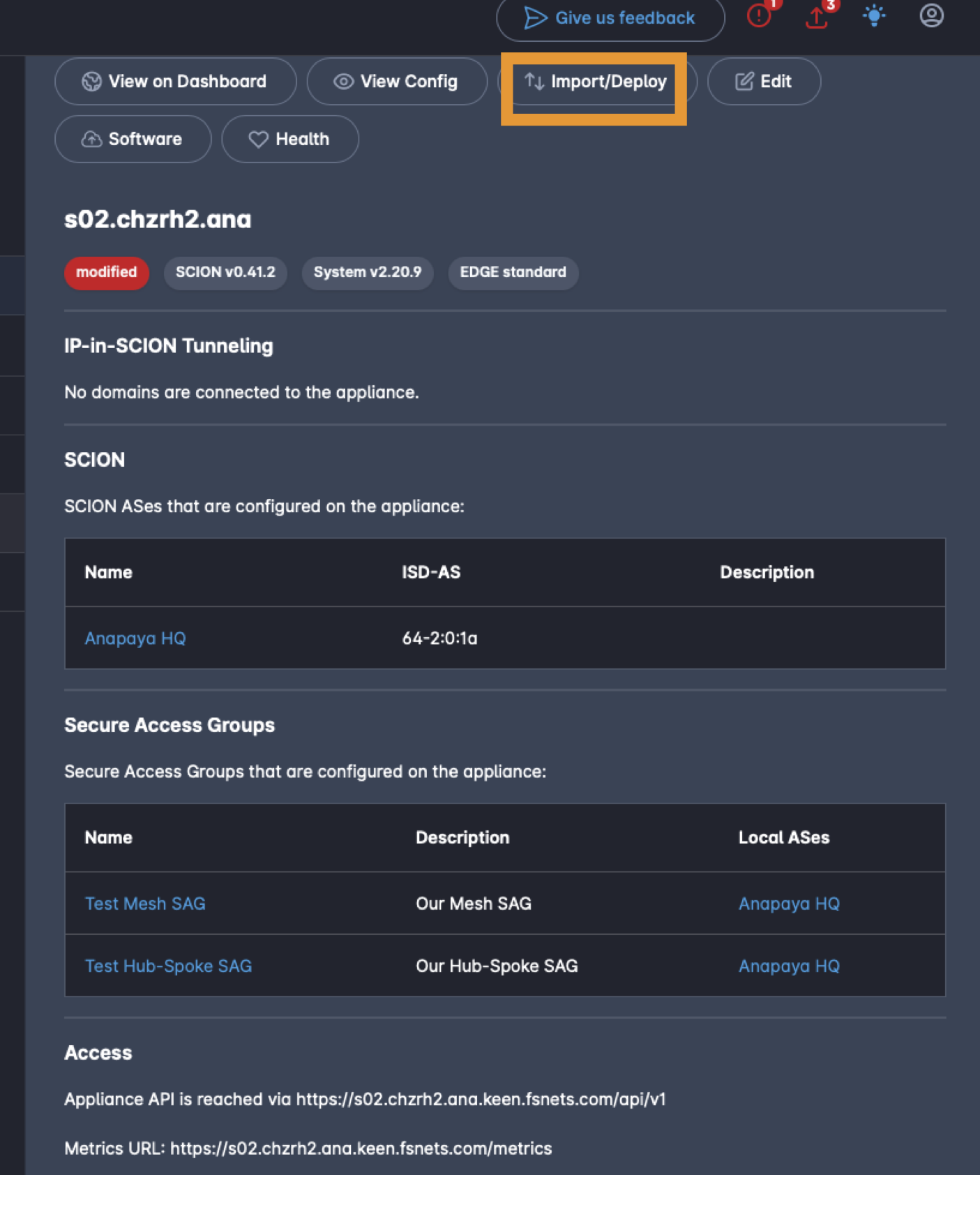
- Click on the appliance name associated with the to-be-activated link in Appliance column.
This opens the appliance overview page.
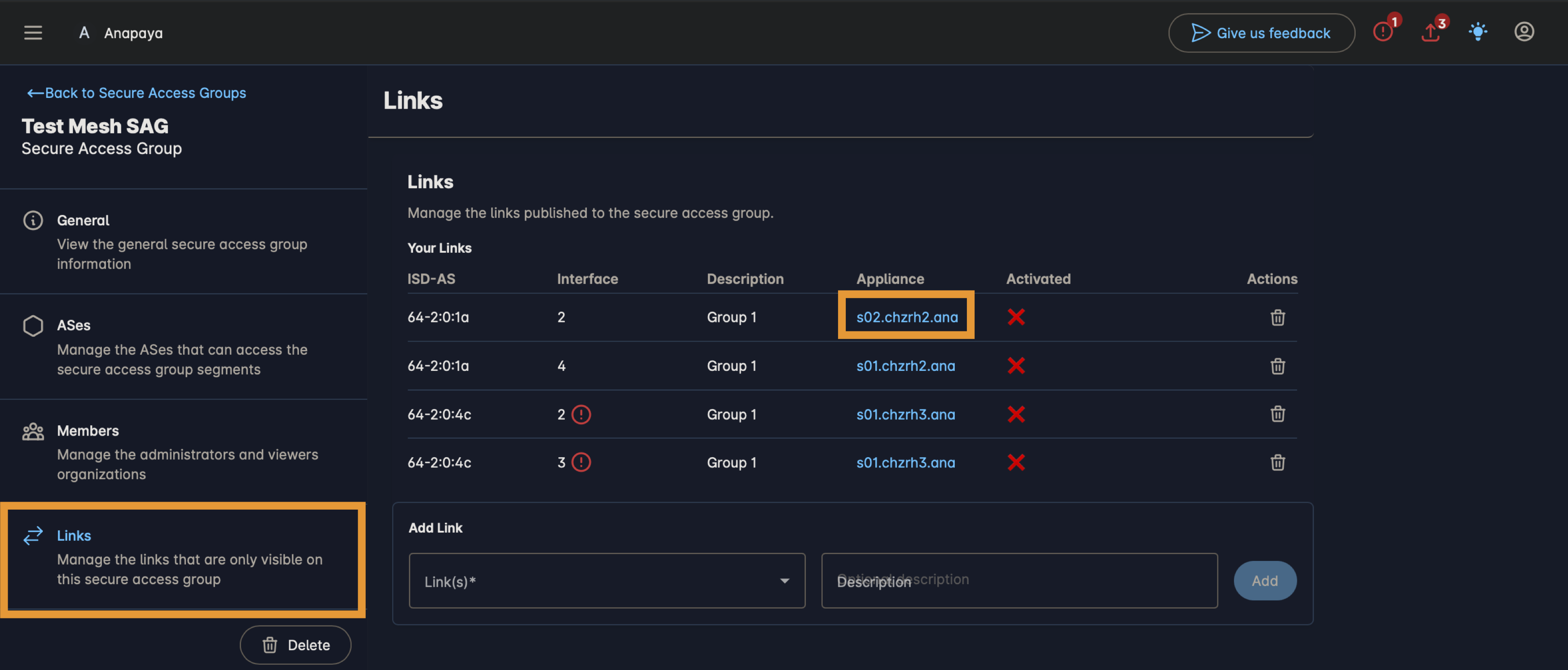
- Click on import/deploy in the appliance overview page.
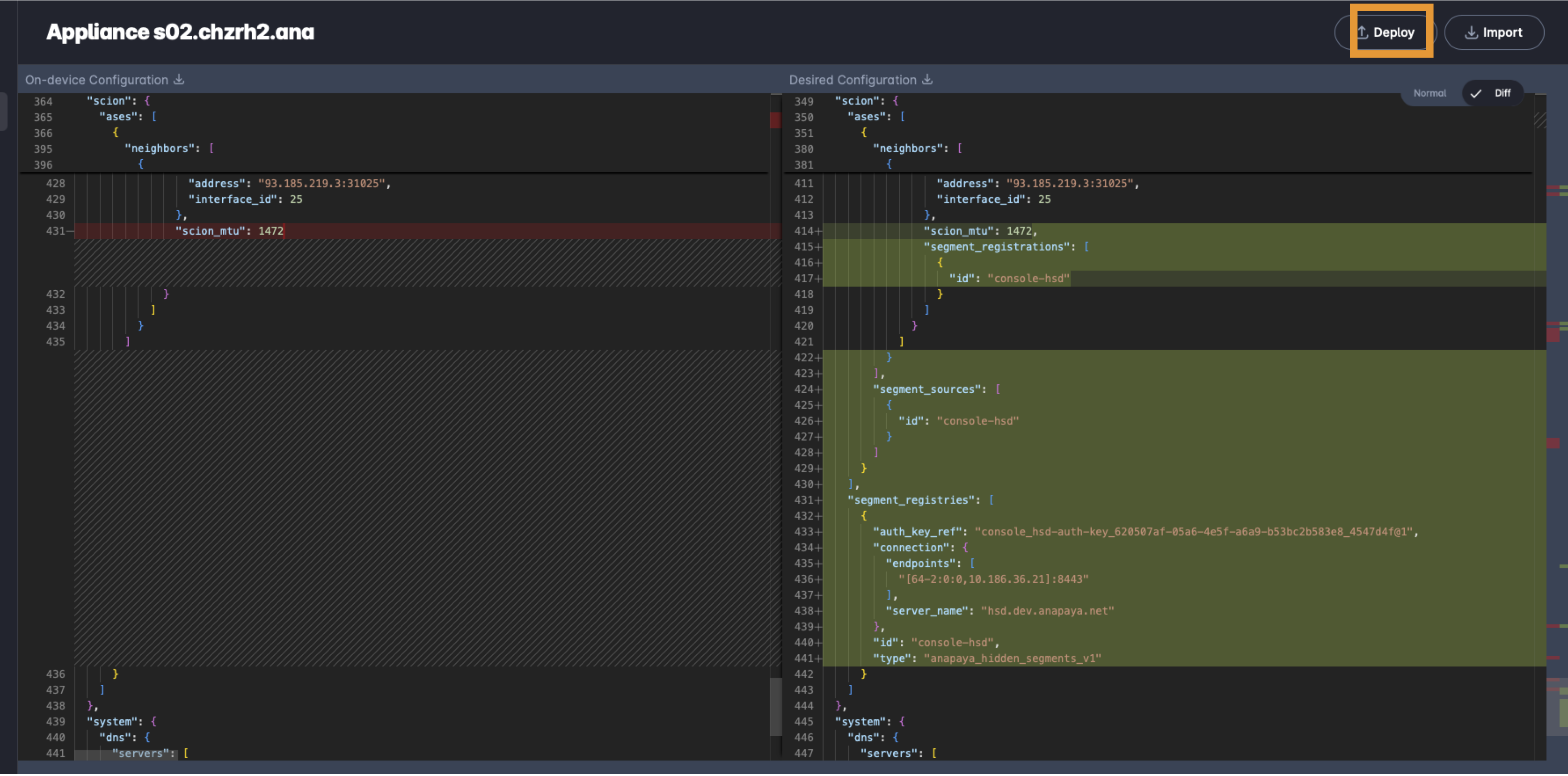
This opens up the configuration page associated with the appliance. On the left, you see the currently deployed configuration and on the right, you see the new configuration, which is not yet deployed on the appliance. As long as the SAG-related sections of the configuration are not deployed, the appliance or the specific link is not part of any SAG.
In the configuration page:
- Scroll to
scion.segment_registriessection to ensure the server from or to which the appliance registers or retrieves SCION path segments is configured. - For any of the ASes listed in
scion.asessection that is a member of any SAG, there must be a sectionconfig.scion.ases[].segment_sources, which must refer to theidof a segment_registry defined inscion.segment_registries. This configures the appliance to retrieve SCION path segments from the referred registry for traffic originating from this AS. - For any of the SCION links of this appliance that is published to any SAG, there must be a
config.scion.ases[].interfaces[].segment_registrationswhich must refer to theidof a segment_registry defined inscion.segment_registries. This configures the appliance to register those SCION path segments that reach this interface to the specified registry instead of the SCION public path infrastructure.
Configure organization members
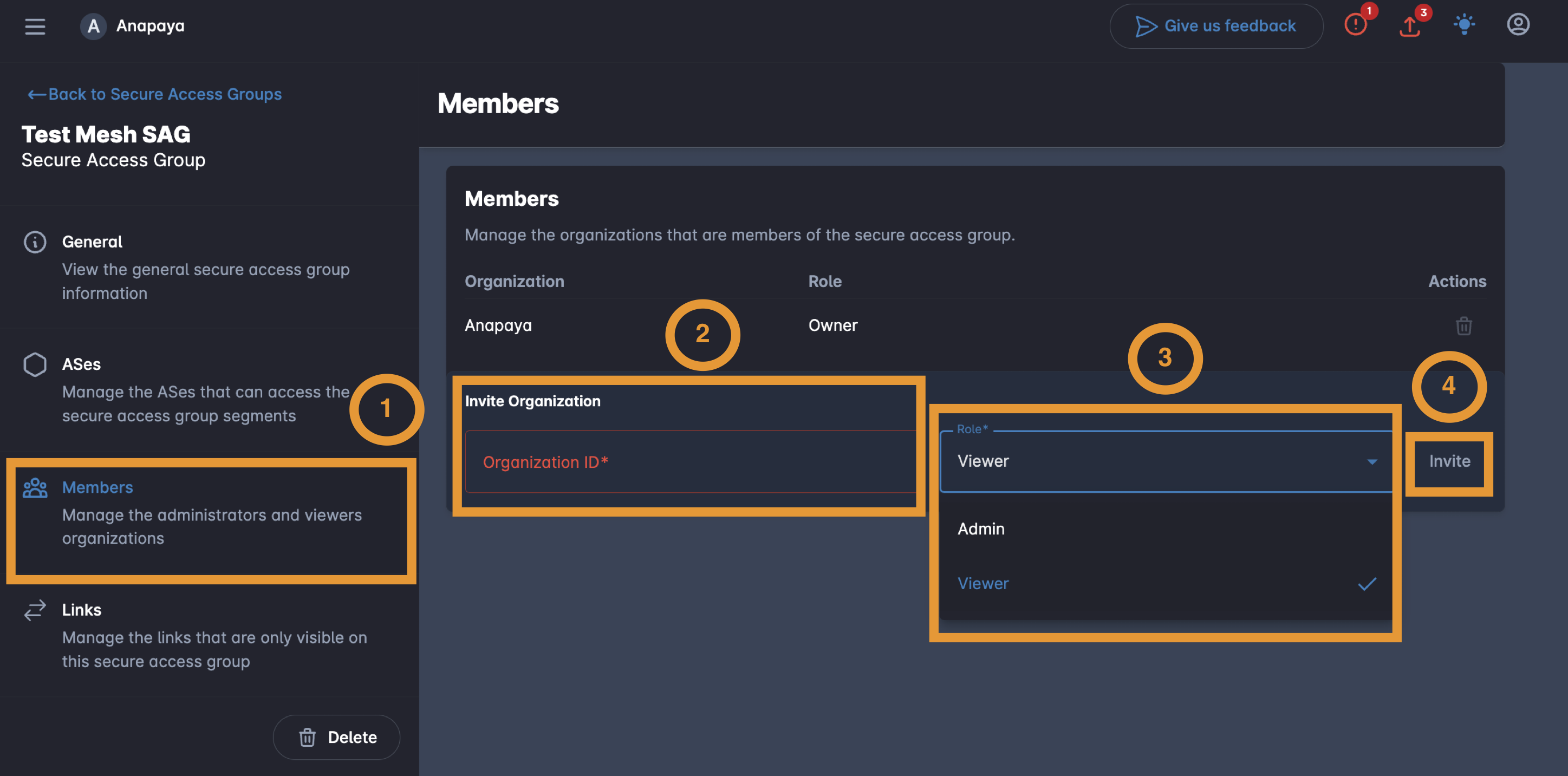
An organization can be invited to a SAG regardless of whether any of their ASes are part of the SAG. To invite an organization:
- Click on Members in the left sidebar.
- Enter the Organization ID of the target organization.
- Select the Role (Admin or Viewer) from the dropdown.
- Click Invite.
Organization roles
- Owner: Full administrative control. Automatically assigned to the creating organization. Cannot be removed. Cannot be assigned to another organization.
- Admin: All permissions of the owner except deleting the SAG.
- Viewer: Read-only access, except on their own AS or organization membership, or their own published links. Automatically assigned when an organization's AS is added to the SAG. In hub-spoke topology, Viewers with only Spoke ASes cannot see ASes, organizations or links other than the ones they own.
The Owner role cannot be assigned through invitations — it is reserved for the organization that created the SAG. The Owner membership cannot be deleted.
Hub-spoke specific configuration
When creating a SAG with Hub-Spoke topology, the workflow is similar but includes role assignment for each AS.
Create a hub-spoke SAG
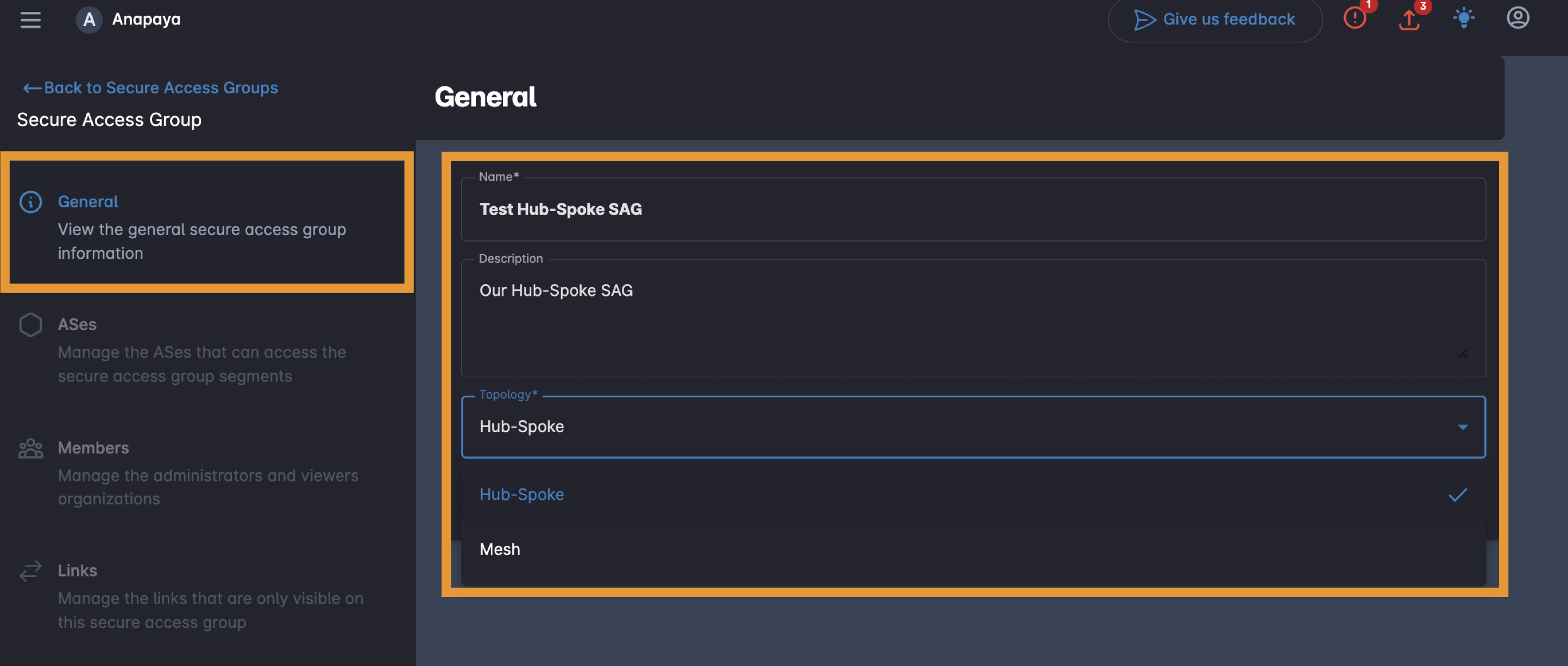
To create a hub-spoke SAG, select Hub-Spoke on the SAG creation page when creating a SAG.
Assign AS roles upon addition to the SAG
Inviting ASes to a Hub-Spoke SAG has one difference compared to a mesh SAG: you need to specify the role of an AS, i.e., Hub or Spoke.
- Hub: The AS(es) to which every AS in the SAG can communicate and all the traffic within the SAG must flow over them.
- Spoke: An endpoint AS that connects to the Hub(s) but cannot communicate with other Spokes.
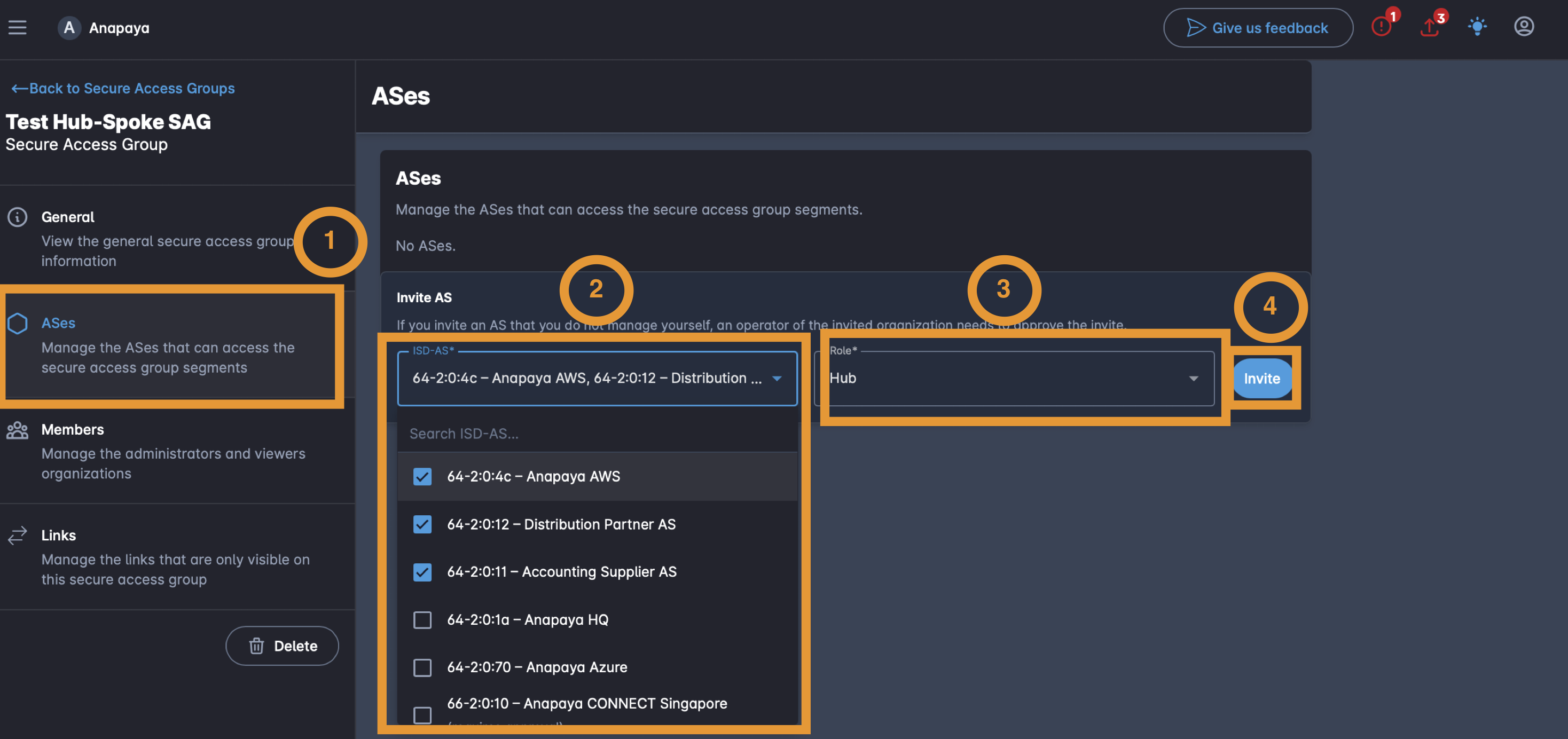
To invite hub ASes in a Hub-Spoke SAG:
- Click on ASes on the left sidebar.
- Click on the ISD-AS dropdown, from which you can select the ISD-AS or search a specific ISD-AS.
- Select the role Hub for selected ISD-ASes. The role will be applied to all those selected ASes.
- Click Invite
Inviting Spoke ASes is similar:
- Click on ASes on the left sidebar.
- Click on the ISD-AS dropdown, from which you can select the ISD-AS or search a specific ISD-AS.
- Select the role Spoke for selected ISD-ASes. The role will be applied to all those selected ASes.
- Click Invite
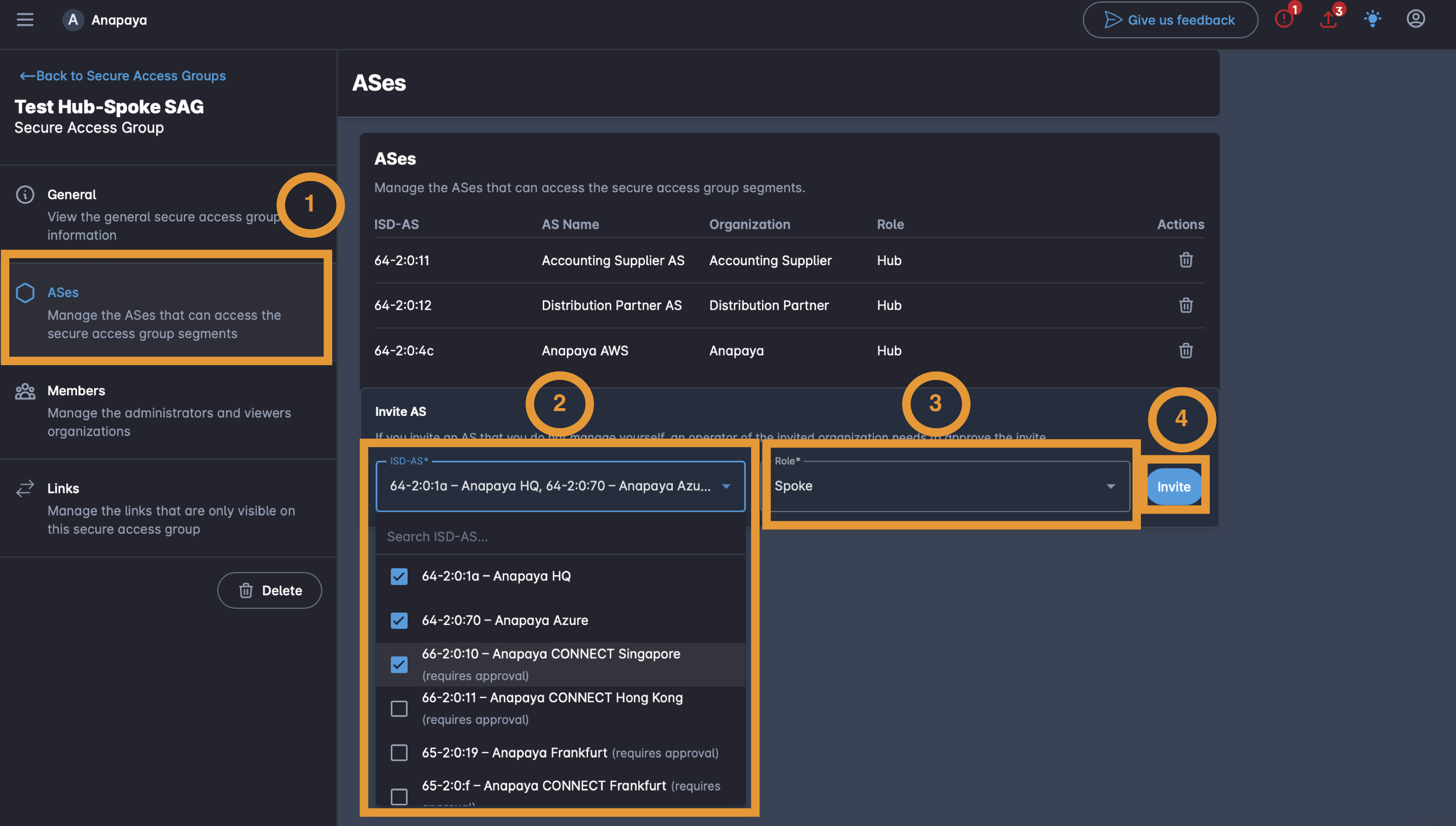
Ensure that at least one hub AS is a member of a hub-spoke SAG, otherwise, the spokes cannot use the SAG.
Delete a Secure Access Group
To delete a SAG, navigate to the SAG's configuration page and click the Delete button at the bottom of the left sidebar. This removes the SAG and all its memberships, invitations, and published links.
Deleting a SAG is irreversible. All member ASes immediately lose access to the SAG's private path segments.
You still need to deploy the updated configuration of appliances in the SAG for the delete to take effect.
Troubleshooting
An appliance does not see expected hidden paths
If an appliance that is a member of a SAG does not see the expected private path segments:
-
Verify AS membership: Confirm that the AS is listed as an active member (not pending) in the SAG's ASes tab.
-
Check link publication: Ensure that the relevant links have been added in the Links tab. Only published links are visible to group members.
-
Check appliance configuration: Ensure the appliance has the Hidden Segment Directory (HSD) endpoint configured under
config.scion.segment_registries, that the relevant interfaces publish to that registry viaconfig.scion.ases[].interfaces[].segment_registrations, and thatconfig.scion.ases[].segment_sourcesincludes the HSD as a path lookup source.noteFor the SAG membership to take effect, the configuration of the appliances associated with the published links must be deployed to the appliances from Anapaya CONSOLE.
-
Verify HSD connectivity: The appliance must be able to reach the Hidden Segment Directory. Check network connectivity to the HSD endpoint.
-
Check the appliance license: Only Anapaya EDGE Pro appliances can participate in SAGs. Verify the appliance has the correct license tier.
-
Cross-organization invitations: If the AS belongs to another organization, verify that the invitation has been accepted (status is not Pending).
-
Hub-spoke role constraints: In a hub-spoke SAG, remember that Spoke ASes can only see paths to Hub ASes. If you need spoke-to-spoke connectivity, use a Mesh topology instead.
An organization cannot create a SAG
- Verify that the organization has a valid SAG contract with a start date that is not in the future.
- Ensure you have the Operator role or higher in the organization.