IP-in-SCION Tunneling: Traffic Engineering
Time estimate: 35 minutes
This hands-on exercise introduces some basic examples of traffic engineering for IP-in-SCION tunneling.
At the end of this hands-on exercise, you will be able to construct path filters, traffic matchers and traffic policies to influence the path of tunneled IP traffic. We will also observe the effects of the traffic engineering in Grafana.
Overview
Refer to the diagram below, which visualizes the network topology we work on in this hands-on session. The depicted infrastructure consists of an ISD, called Finance ISD, which has three ASes:
- Webspeed (ISD-AS 1-ff00:1:1)
- Corpbank Switzerland (ISD-AS 1-ff00:1:2)
- Stabank Private Banking (ISD-AS 1-ff00:1:3)
The Webspeed AS consists of three sites in Zurich, Geneva, and Lugano. Each of these sites includes
exactly one host. These hosts are called core.zurich.webspeed, core.geneva.webspeed, and
core.lugano.webspeed, respectively. This is a core AS.
The Corpbank Switzerland AS has two sites, one in Geneva and one in Zurich. Both of them have a
host, respectively called edge.zurich.corpbank and edge.geneva.corpbank. Furthermore, the
Stabank Private Banking AS includes only one site, in Lugano, with one host, called
edge.lugano.stabank. They are both leaf ASes and each of them is connected to the Webspeed AS via
two links, as depicted in the diagram below and here for a fullscreen
view.
Over the course of this lab, you will be working in a cloud-hosted playground of the SCION infrastructure. All the ASes run in a virtualized environment on a cloud machine.
Task 1. Induce and Observe Network Traffic
Time estimate: 15 minutes
In this task, you will learn how to induce synthetic network traffic between endpoints and how to observe it on the monitoring stack. In a separate tab, open Grafana.
To view the overview dashboard for the routers in the network at the top of the page click on Home, select the autoprovision field and click on the predefined dashboard named Router.
The dashboard displays many different metrics, each in a separate graph. The metrics from different hosts are distinguished by labels. You can find the different labels for each metric in the legend at the bottom of the graph.
Hover over a graph to see the exact metrics value at a given point in time.
To see how traffic affects the reported metrics, iperf3 is used to create some pseudo traffic
between end hosts at Corpbank Switzerland and Stabank Private Banking.
Unless stated otherwise, all commands are assumed to be run from the
workspace directory on your training VM. The built-in terminal in
the editor will put you automatically in the right
directory. To open the built-in terminal use the Ctrl+` shortcut.
Alternatively, you can click the Menu button in the top left, then
select View -> Show Terminal . This will bring up the terminal and puts
you in the correct working directory (~/workspace) for all the tasks in
this training.
In a terminal connect to endhost-zurich-corpbank in Corpbank Switzerland and start an iperf3
client:
operator@training:~/workspace$ lxc shell endhost-zurich-corpbank
root@endhost-zurich-corpbank:~# iperf3 -c 10.8.0.2 -t 100 -u -b 1M
On endhost-lugano-stabank there is already an iperf3 server running, ready to accept
connections.
This will start an iperf3 test that runs for 100 seconds, which gives us enough time to navigate
the web UI and look at the metrics.
Open up the Grafana dashboard again. Locate the graph for incoming traffic on the router "Traffic (bits) RX". You may have to adjust the time range of the graphs to show the most recent values. For this purpose use the time range controls in the top right corner of the page.
You can use the dropdown menu next to the refresh button on the top right to automatically refresh the dashboard at a fixed interval.

In the graph you see a change in traffic on some of the lines.
Next, try to find out which path the generated traffic is using. At the top of the page you can
restrict the displayed hosts to the Lugano EDGE edge.lugano.stabank by selecting it in the host
filter.
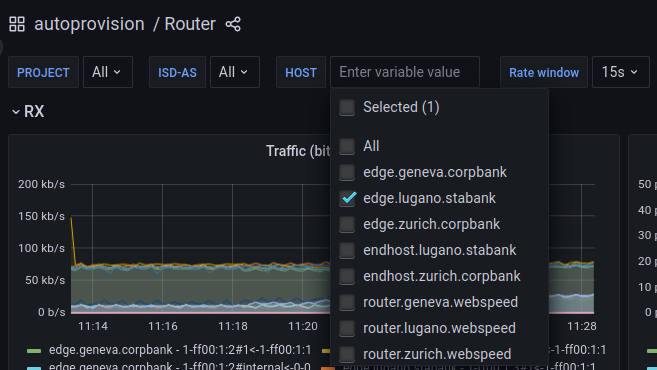
Now, the graph for incoming traffic shows three curves. One for the external interfaces 1 and 2 and one for the internal interface. You can take another look at the topology above to match the lines to the interfaces.
Which interface did the generated traffic use to enter the Stabank AS?
Solution
The answer to this question depends on the path choice of the edge so it may be different in your environment.
As an example consider the following graph:
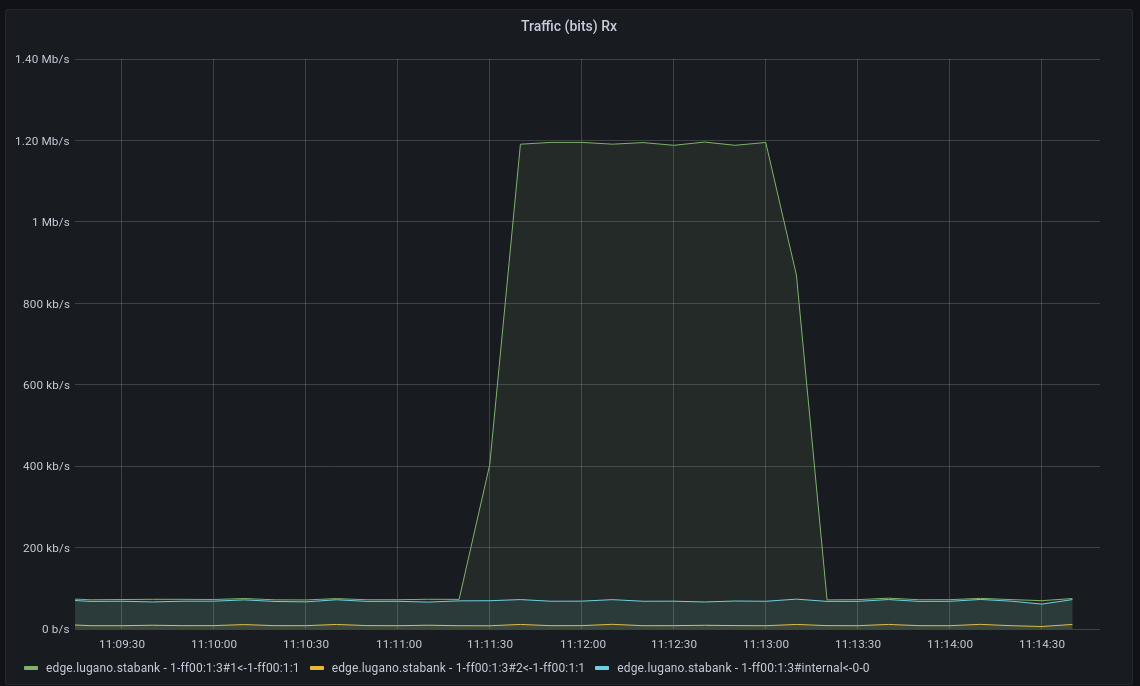
The peak is on the line labelled "edge.lugano.stabank - 1-ff00:1:3#1<-1-ff00:1:1". This indicates that the traffic took the link between the Webspeed interface 1 and Stabank interface 1.
Task 2. Traffic engineering
Time estimate: 20 minutes
In this task, you will learn how to create traffic engineering rules for the SCION EDGEs. First, create some traffic between Stabank Private Banking and Corpbank Switzerland sites.
To generate traffic from the Stabank Private Banking side, start the iperf3 client:
operator@training:~/workspace$ lxc shell endhost-lugano-stabank
root@endhost-lugano-stabank:~# iperf3 -c 10.2.0.3 -B 10.8.0.2 -u -b 1M
root@endhost-lugano-stabank:~# iperf3 -c 10.2.0.3 -B 10.8.0.5 -u -b 1M
On endhost-zurich-corpbank there is already an iperf3 server running, ready to accept
connections.
Investigate the path that the traffic takes by looking at the "Traffic (bits) TX" graph on Grafana.
Again, setting the host filter to edge.lugano.stabank makes it easier to see which path is used.
Note that the the traffic uses only one path, independent of the source.
The two source IP addresses 10.8.0.2 and 10.8.0.5 are both configured on the Stabank end host in
Lugano.
The rest of this task will explain how we can create traffic engineering rules to select a path
depending on the type of traffic. The goal is to route traffic from 10.8.0.2 via the Corpbank
EDGE in Zurich and traffic from 10.8.0.5 via the Corpbank EDGE in Geneva. To do this, we will need
to update the scion tunneling section in the configuration of the Stabank EDGE in Lugano.
First, we will create path filters that select the paths with the respective EDGE. Then, we will define traffic matchers to match IP traffic by the source IP. Finally, we will combine the traffic matchers and path filters into path policies to achieve the desired effect.
First, download the current SCION configuration from the Stabank EDGE in Lugano:
operator@training:~/workspace$ appliance-cli context select edge.lugano.stabank
operator@training:~/workspace$ appliance-cli get config > edge.lugano.stabank.appliance.json
Keep a copy of the configuration so that you can easily roll back the changes made in the course of this exercise:
operator@training:~/workspace$ cp edge.lugano.stabank.appliance.json edge.lugano.stabank.appliance.json.backup
Path Filters
As a first step, define the path filters. Path filters express which paths should be used by IP-in-SCION tunneling traffic. The set of paths a path filter accepts can be described by a path ACL or a hop pattern. A path ACL is a list of hop predicates that are either explicitly allowed or disallowed. A hop pattern matches an ordered list of hops similar to a regular expression.
To see how ACLs work, first print the paths available on the edge-lugano-stabank host:
operator@training:~/workspace$ lxc shell edge-lugano-stabank
root@edge-lugano-stabank:~# scion showpaths 1-ff00:1:2
Available paths to 1-ff00:1:2
3 Hops:
[0] Hops: [1-ff00:1:3 1>2 1-ff00:1:1 1>1 1-ff00:1:2] MTU: 1472 NextHop: 10.8.0.1:30042 Status: alive LocalIP: 10.8.0.1
[1] Hops: [1-ff00:1:3 1>2 1-ff00:1:1 3>2 1-ff00:1:2] MTU: 1472 NextHop: 10.8.0.1:30042 Status: alive LocalIP: 10.8.0.1
[2] Hops: [1-ff00:1:3 2>4 1-ff00:1:1 1>1 1-ff00:1:2] MTU: 1472 NextHop: 10.8.0.1:30042 Status: alive LocalIP: 10.8.0.1
[3] Hops: [1-ff00:1:3 2>4 1-ff00:1:1 3>2 1-ff00:1:2] MTU: 1472 NextHop: 10.8.0.1:30042 Status: alive LocalIP: 10.8.0.1
This lists 4 paths, indexed from 0 to 3. The simplest ACLs are the allow all or deny all
ACLs, denoted with + 0 or - 0, respectively. That means + 0 will allow all paths and - 0
will deny all paths. The 0 is a wildcard matching all hops.
To match only a subset of hops, the ACL needs to specify a hop-matching predicate by replacing the
wildcard with a <ISD>-<AS>#<Interface> string. For example, 1-ff00:1:1#1 will match only hop
fields for ISD 1, AS ff00:1:1, and interface 1.
Not specifying the <Interface> will make it act as a wildcard (and match any interface ID). For
example + 1-ff00:1:1 matches all interfaces in the 1-ff00:1:1 AS.
Not specifying the <Interface> and the <AS> will make both of them act as wildcards (and match
any AS and any interface ID). For example, + 1 matches all interfaces in ISD 1.
The ACL is always a list of different predicates. However, the last entry must always be a deny all or an allow all entry. Predicates are evaluated in order, and the first predicate that matches causes the ACL evaluation to stop. The action (allow or deny) in the predicate then takes effect. For example, to allow only traffic within the Finance ISD (ISD 1) we can write the following ACL:
{
   "name": "finance-only-path-filter",
   "acl": [
      "+ 1",
      "- 0"
   ]
}
Similarly, to disallow only a specific interface (interface 2 of AS 1-ff00:1:1) and allow everything else, use the following ACL:
{
   "name": "avoid-webspeed-if-2",
   "acl": [
      "- 1-ff00:1:1#2",
      "+ 0"
   ]
}
The path filters are listed in the path filters field of the scion_tunneling.path_filters section.
In the configuration of the Stabank EDGE in Lugano, add a path filter with an ACL that does not allow paths that include interface 1 (Geneva) of the Corpbank Switzerland AS 1-ff00:1:2.
All lists in the appliance configuration are sorted by the sequence_id of the elements. When
adding a new entry, choose an appropriate sequence id. To reorder elements, you will need to modify
the sequence id of one or multiple entries.
Solution
For the second path filter, we will use a hop pattern to showcase the differences. Note that in this
simple setup, the same semantics could be expressed with an ACL. A hop pattern defines a sequence of
space separated hop predicates that a path has to match to be accepted. It can be thought of as a
regular expression on SCION paths. Each hop predicate can optionally be extended with a modifier *
or +. The * modifier means 0 or more occurrences. The + means one or more occurrences. The hop
predicates have the same syntax <ISD>-<AS>#<Interface> as the path ACL described above.
For example the following path filter matches paths that leave the 1-ff00:1:111 AS through SCION
interface 1:
{
    "name": "provider_1_outgoing",
    "description": "Paths that leave the local AS through SCION interface 1",
    "hop_pattern": "1-ff00:1:111#1 0*"
}
Create a second path filter that uses a hop pattern to match all paths that reach the Corpbank AS 1-ff00:1:2 via Geneva, that is, on interface 1.
All lists in the appliance configuration are sorted by the sequence_id of the elements. When
adding a new entry, choose an appropriate sequence id. To reorder elements, you will need to modify
the sequence id of one or multiple entries.
Solution
There are several ways to specify the hop pattern. The simplest just matches the paths last hop and uses a wildcard to match all other hops.
This concludes the setup of path filters. Next, we will select the type of IP traffic that is tunneled by creating traffic matchers.
Traffic Matchers
A traffic matcher classifies IP traffic according to user specified rules. With the help of traffic policies, which we will configure in a later step, a traffic matcher is combined with a list of path filters to define the SCION paths that the matching IP traffic will be routed on.
As an example, it is desirable to route voice and video call traffic via a low latency paths. On the other hand, periodic backup profit more from high bandwidth paths and the latency is only secondary. In this example the traffic matcher would classify the IP packets as video chat or backup, and the path policy would filter for low latency or high bandwidth paths, respectively.
Traffic matchers are configured in the scion_tunneling.traffic_matchers section. A traffic matcher
consists of a unique name and a condition. The condition defines the matching criteria for the
traffic matcher. It is defined as a boolean expression that then evaluates to either true - the IP
packet is matched by the traffic matcher - or false - the IP packet is not matched by the traffic
matcher.
For this exercise , we want to match packets by source IP. Use the expression:
SRC=<IP-prefix>
The expression evaluates to true if the source IP address of the packet is contained in IP-prefix.
For a description of all expressions see the Traffic Matchers
section in the documentation.
Create two additional traffic matchers that match the source IP prefixes 10.8.0.2/32 and
10.8.0.5/32 respectively.
All lists in the appliance configuration are sorted by the sequence_id of the elements. When
adding a new entry, choose an appropriate sequence id. To reorder elements, you will need to modify
the sequence id of one or multiple entries.
Solution
Traffic policies
Now that the traffic matchers and the path filters are defined, they need to be tied together. This is done with traffic policies that are configured per domain. A traffic policy connects path filters with a traffic matcher.
We will modify the traffic policies in the corpbank domain of the Stabank EDGE in Lugano to route
traffic differently based on the source IP. The current configuration, which we need to extend,
looks like this:
Traffic Policies reference traffic matchers and path filters by name. The traffic matchers define the IP traffic that will be covered by the path policy. The path filters are listed in the failover sequence to define the set of SCION paths that traffic will be forwarded on. To select a path for the tunnel, the following steps are taken:
- The path filters are traversed in order of their sequence ID within the failover sequence.
- Each path filter is applied on the candidate set of paths.
- The best path out of the acceptable set is chosen according to path health and performance metrics. If no such path exists, i.e., no candidate path is allowed by the filter or no path is healthy, selection continues to the next path filter in the failover sequence.
- If all filters have been considered and no healthy path was selected, traffic will be dropped.
Create the two new traffic policies such that they are evaluated before the existing policy that
matches all traffic. This implies that you will choose the sequence_id appropriately. Route
traffic from 10.8.0.2 via the Corpbank EDGE in Zurich and traffic from 10.8.0.5 via the Corpbank
EDGE in Geneva.
All lists in the appliance configuration are sorted by the sequence_id of the elements. When
adding a new entry, choose an appropriate sequence id. To reorder elements, you will need to modify
the sequence id of one or multiple entries.
Solution
Push the modified configuration back to the appliance by running the following command:
operator@training:~/workspace$ appliance-cli put config <edge.lugano.stabank.appliance.json
Again, generate traffic as explained in the beginning of the task, observe how the traffic takes a different path depending on the source IP address in the Grafana dashboard.
In Grafana, set the host filter to include both edge.zurich.corpbank and edge.geneva.corpbank to
observe traffic on both edges.
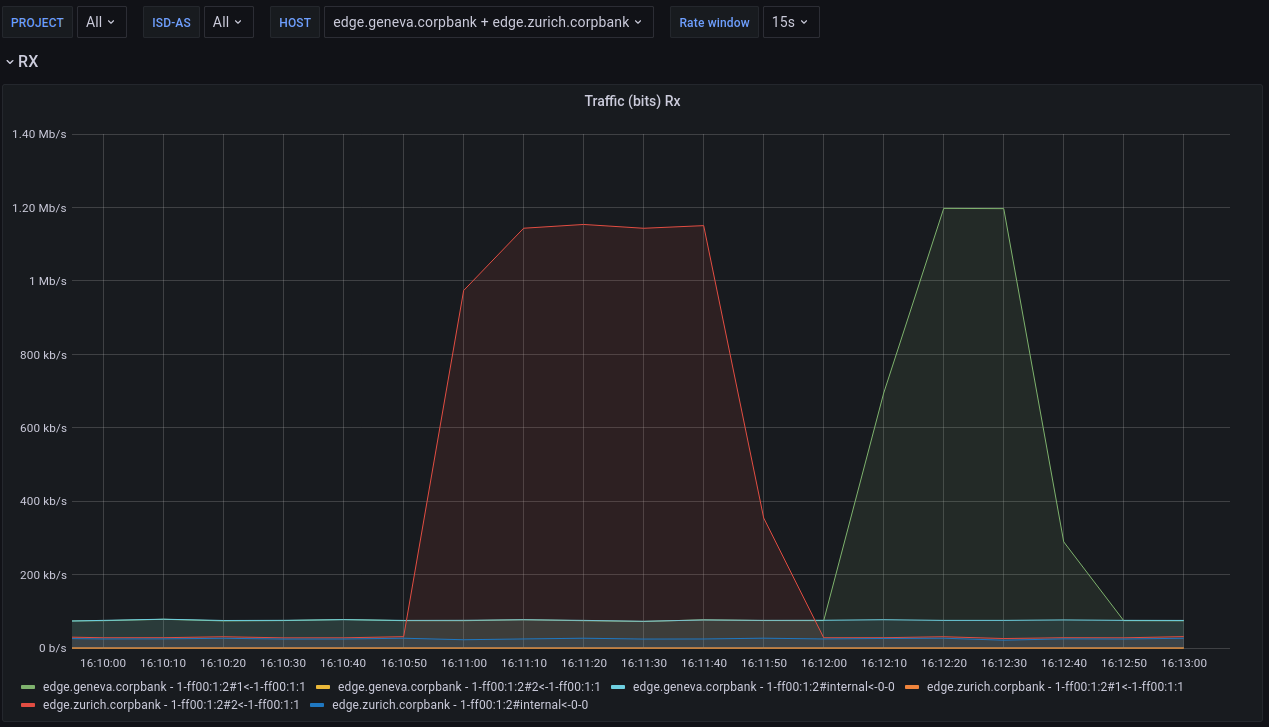
In the end you should see something similar to: