AS Certificate
Time estimate: 15 minutes
The Control Plane PKI exercise is a prerequisite for this exercise. In particular, you need to know how to generate, install, and list SCION AS certificates.
In order for the appliance to join the SCION network and communicate with other nodes, it has to be configured with a set of Trust Root Configurations (TRCs). These TRCs build the trust anchors for verifying all of the control plane data that is exchanged in the SCION protocol.
Furthermore, for the appliance to perform tasks such as propagating SCION beacons or transforming beacons into proper SCION path segments, a SCION CPPKI AS certificate and the associated private key are necessary. The SCION CPPKI AS certificate is used to verify the authenticity of the control plane material that is produced and signed by this appliance.
Therefore, for the SCION services to run as desired, it is essential that the TRCs and AS certificates are valid and configured correctly. If the necessary cryptography material is not present, misconfigured, or expired, the SCION connectivity might be lost.
The goal of this exercise is to teach you how to find and fix issues related to AS certificates. In particular, you will be asked to run a script which introduces an issue related to AS certificates in one of the ASes. Then, in the first task you will be given different pointers to find out the source of the issue. Finally, you will resolve the issue in the second task and bring the network into a functioning state.
Overview
Refer to the diagram below, which visualizes the network topology we work on in this hands-on session. The depicted infrastructure consists of an ISD, called Finance ISD, which has three ASes:
- Webspeed (ISD-AS 1-ff00:1:1)
- Corpbank Switzerland (ISD-AS 1-ff00:1:2)
- Stabank Private Banking (ISD-AS 1-ff00:1:3)
The Webspeed AS consists of three sites in Zurich, Geneva, and Lugano. Each of these sites includes
exactly one host. These hosts are called core.zurich.webspeed, core.geneva.webspeed, and
core.lugano.webspeed, respectively. This is a core AS.
The Corpbank Switzerland AS has two sites, one in Geneva and one in Zurich. Both of them have a
host, respectively called edge.zurich.corpbank and edge.geneva.corpbank. Furthermore, the
Stabank Private Banking AS includes only one site, in Lugano, with one host, called
edge.lugano.stabank. They are both leaf ASes and each of them is connected to the Webspeed AS via
two links, as depicted in the diagram below and here for a fullscreen
view.
Over the course of this lab, you will be working in a cloud-hosted playground of the SCION infrastructure. All the ASes run in a virtualized environment on a cloud machine.
Preparing the Setup
First, let's quickly confirm that everything is up and running as expected. For example, log into
the host edge.lugano.stabank and run a showpaths command toward the Corpbank AS.
Solution
operator@training:~/workspace$ lxc shell edge-lugano-stabank

root@edge-lugano-stabank:~# scion showpaths 1-ff00:1:2
Available paths to 1-ff00:1:2
3 Hops:
[0] Hops: [1-ff00:1:3 1>2 1-ff00:1:1 1>1 1-ff00:1:2] MTU: 1472 NextHop: 10.8.0.1:30042 Status: alive LocalIP: 10.8.0.1
[1] Hops: [1-ff00:1:3 1>2 1-ff00:1:1 3>2 1-ff00:1:2] MTU: 1472 NextHop: 10.8.0.1:30042 Status: alive LocalIP: 10.8.0.1
[2] Hops: [1-ff00:1:3 2>4 1-ff00:1:1 1>1 1-ff00:1:2] MTU: 1472 NextHop: 10.8.0.1:30042 Status: alive LocalIP: 10.8.0.1
[3] Hops: [1-ff00:1:3 2>4 1-ff00:1:1 3>2 1-ff00:1:2] MTU: 1472 NextHop: 10.8.0.1:30042 Status: alive LocalIP: 10.8.0.1
There are four alive paths as expected.
Now, list all the installed certificate chains for this host.
Solution
operator@training:~/workspace$ appliance-cli context select edge.lugano.stabank
operator@training:~/workspace$ appliance-cli get cppki/certificates
{
    "certificate_chains": [
        {
                "blob": "https:/edge.lugano.stabank/api/v1/cppki/certificates/f7dc56457edf503567734369223a92cdc0474c5768fd4209ddfe3182d770a407/blob",
                "chain": "https://edge.lugano.stabank/api/v1/cppki/certificates/f7dc56457edf503567734369223a92cdc0474c5768fd4209ddfe3182d770a407",
                "id": "f7dc56457edf503567734369223a92cdc0474c5768fd4209ddfe3182d770a407",
                "issuer": "1-ff00:1:1",
                "subject": "1-ff00:1:3",
                "validity": {
                "not_after": "2021-11-01T07:17:43Z",
                "not_before": "2021-10-29T07:17:13Z"
                }
        },
        {
                "blob": "https:/edge.lugano.stabank/api/v1/cppki/certificates/6818a811238845af236332da46f9f6fc46f3382ce7907f9d54603ac50662f91d/blob",
                "chain": "https://edge.lugano.stabank/api/v1/cppki/certificates/6818a811238845af236332da46f9f6fc46f3382ce7907f9d54603ac50662f91d",
                "id": "6818a811238845af236332da46f9f6fc46f3382ce7907f9d54603ac50662f91d",
                "issuer": "1-ff00:1:1",
                "subject": "1-ff00:1:3",
                "validity": {
                "not_after": "2021-10-31T13:06:59Z",
                "not_before": "2021-10-28T13:06:29Z"
                }
        }
    ]
}
Run the following command:
operator@training:~/workspace$ ./appliance_cert_exercise setup
This will prepare the setup for the tasks you are going to do next. It touches the cryptographic material in one of the ASes which results in the network malfunctioning. In Task 1, you are guided to find the source of the issue step by step. Then, in Task 2 you will resolve the issue.
If you need to revert the changes made by the above command at any time during this exercise, you can run the following command:
operator@training:~/workspace$ ./appliance_cert_exercise restore
Task 1. Finding the Issue
In practice, if the network is malfunctioning, ideally there is an alerting system in place which informs you about it. In the training setup, we do not have the alert notification setup in place.
Let's assume that you have just been notified of an alert via the alerting system. It is directing you to the alert page that lists the alerts. Check out this page and look for the firing alerts there. To log in, you need to enter admin and training as the username and password, respectively.
The alerts are marked as pending before they are marked as firing. Hence, if you cannot find the alerts you are looking for under the firing category, check the pending alerts as well.
There must be some SCIONCryptoASCertificateExpiresSoon errors, you can find a runbook for this
alert on our public documentation

Figure out which host is the origin of the errors and what seems to be the problem.
Solution
From the labels in the errors, you should be able to observe that the host edge.lugano.stabank is
causing the problem. Furthermore, looking at the description of the errors, it seems the problem is
related to the SCION AS certificates.
You already should have a good guess what might be the problem, but let's investigate this further before we take any action to resolve it. In particular, a natural next step would be to check the relevant monitoring endpoints.
Open the EDGE Overview dashboard and check out the diagram called AS Certificate Validity. It should be similar to the diagram below.
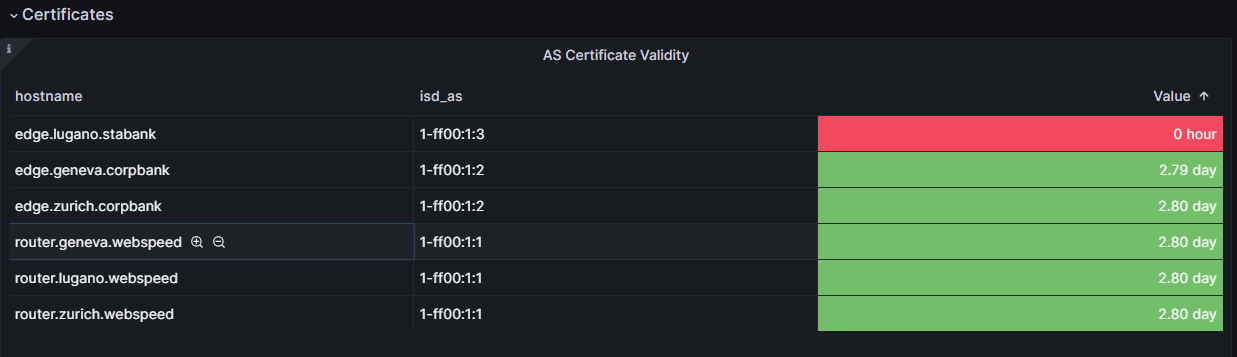
As you can observe, this diagram also confirms that the host edge.lugano.stabak has no AS
certificate.
Log into the host edge.lugano.stabank and run a showpaths command toward the Corpbank AS.
Solution
operator@training:~/workspace$ lxc shell edge-lugano-stabank

root@edge-lugano-stabank:~# scion showpaths 1-ff00:1:2
Available paths to 1-ff00:1:2
Error: no path found
As you can see there is no path.
Finally, list all the installed certificate chains in the host edge.lugano.stabank.
Solution
operator@training:~/workspace$ appliance-cli context select edge.lugano.stabank
operator@training:~/workspace$ appliance-cli get cppki/certificates
{
    "certificate_chains": []
}
As you already have guessed, there is no AS certificate configured on this host.
Task 2. Resolving the Issue
In Task 1, we found out the issue is that there is no AS certificate configured on the host
edge.lugano.stabank. Thus, to resolve the issue, you need to add a valid AS certificate to this
host.
In general, a SCION CPPKI AS certificate needs to be requested from one of the CAs of the local ISD. The initial certificate is requested with an out-of-band mechanism. Afterwards, the SCION CPPKI AS certificates are periodically renewed by the appliance in a fully automatic fashion.
The cause for a missing AS certificate could be that we have just added the host and forgotten to configure an AS certificate or its certificate has been deleted accidentally or there was an issue with automatic renewal. One example of the last case would be a prolonged connectivity issue that would prevent renewal. Say the network is offline for multiple days.
To request the initial certificate, you will need to instruct the appliance to create a Certificate Signing Request (CSR). This CSR then needs to be signed by a CA in the ISD. The result is a certificate chain consisting of the issued SCION CPPKI AS certificate and the issuing SCION CPPKI CA certificate. This certificate chain then needs to be installed on the appliance. You should already have learned how to perform these steps from the exercise Control Plane PKI exercise ; however, for the sake of completeness, we provide the necessary steps explicitly here.
Check the appliance management API and try to find the appropriate endpoint for generating a fresh CSR.
Solution
The documentation for the endpoint can be found at Generating a certificate signing request.
The endpoint expects a request body that defines the distinguished name of the subject for the CSR.
Create a cp-as.json file in your current working directory in the expected format.
The ISD-AS number must be set to the ISD-AS number of the Stabank AS. The other values are optional, and you can choose them to your liking.
Solution
Then, generate a fresh CSR and store it in the cp-as.csr file in the editor working directory.
Solution
The documentation for the endpoint can be found at Generating a certificate signing request.
operator@training:~/workspace$ appliance-cli post cppki/csrs <cp-as.json --raw > cp-as.csr
Now that you have created the CSR, you need to acquire a proper SCION CPPKI AS certificate based on it. In a real deployment setup, this is an out-of-band mechanism. For this exercise, it suffices to run the following command:
operator@training:~/workspace$ ./appliance_cppki_exercise request cp-as.csr cp-as.pem
This command takes your CSR in cp-as.csr, requests a SCION CPPKI AS certificate, and writes the
result to cp-as.pem.
Check the appliance management API and try to find the appropriate endpoint for installing the signed SCION CPPKI AS certificate. Install it with the endpoint you have discovered.
Solution
The documentation for the endpoint can be found at: Installing AS certificates.
operator@training:~/workspace$ appliance-cli post cppki/certificates <cp-as.pem
List the installed certificate chains for this host to confirm that the AS certificate is installed successfully.
Solution
operator@training:~/workspace$ appliance-cli get cppki/certificates
{
    "certificate_chains": [
        {
                "blob": "https:/edge.lugano.stabank/api/v1/cppki/certificates/33d0514fbd5f27185514aa22632ea356ff52e3aca3cff3513205b012a9374ffb/blob",
                "chain": "https://edge.lugano.stabank/api/v1/cppki/certificates/33d0514fbd5f27185514aa22632ea356ff52e3aca3cff3513205b012a9374ffb",
                "id": "33d0514fbd5f27185514aa22632ea356ff52e3aca3cff3513205b012a9374ffb",
                "issuer": "1-ff00:1:1",
                "subject": "1-ff00:1:3",
                "validity": {
                "not_after": "2021-10-31T06:57:51Z",
                "not_before": "2021-10-28T06:57:21Z"
                }
        }
    ]
}
As you can see, the AS certificate you just configured is listed.
Now, log into the edge.lugano.stabank host and run a showpaths command towards the Corpbank AS.
Solution
operator@training:~/workspace$ lxc shell edge-lugano-stabank

root@edge-lugano-stabank:~# scion showpaths 1-ff00:1:2
Available paths to 1-ff00:1:2
3 Hops:
[0] Hops: [1-ff00:1:3 1>2 1-ff00:1:1 1>1 1-ff00:1:2] MTU: 1472 NextHop: 10.8.0.1:30042 Status: alive LocalIP: 10.8.0.1
[1] Hops: [1-ff00:1:3 1>2 1-ff00:1:1 3>2 1-ff00:1:2] MTU: 1472 NextHop: 10.8.0.1:30042 Status: alive LocalIP: 10.8.0.1
[2] Hops: [1-ff00:1:3 2>4 1-ff00:1:1 1>1 1-ff00:1:2] MTU: 1472 NextHop: 10.8.0.1:30042 Status: alive LocalIP: 10.8.0.1
[3] Hops: [1-ff00:1:3 2>4 1-ff00:1:1 3>2 1-ff00:1:2] MTU: 1472 NextHop: 10.8.0.1:30042 Status: alive LocalIP: 10.8.0.1
All four paths are up and running.
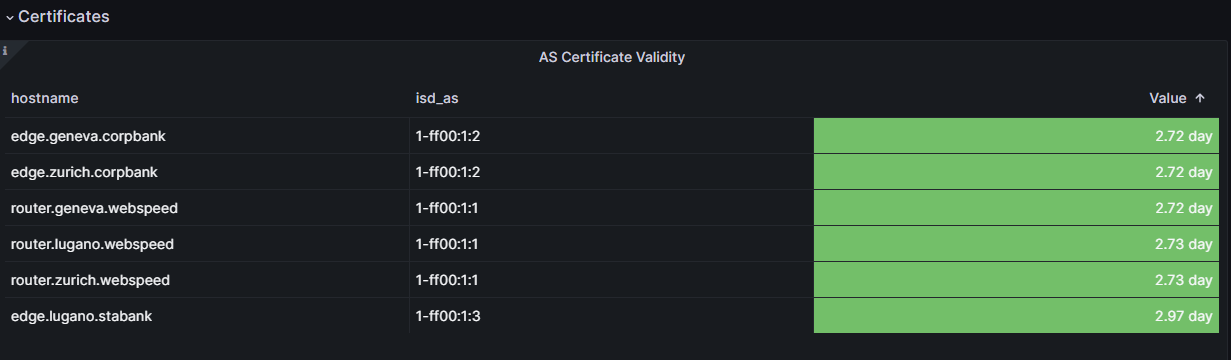
Finally, head to the monitoring endpoints and open the EDGE Overview dashboard and check out the diagram called AS Certificate Validity. It should be similar to the diagram below, which indicates that the AS certificate has been configured correctly now.